What Is Touch Typing?
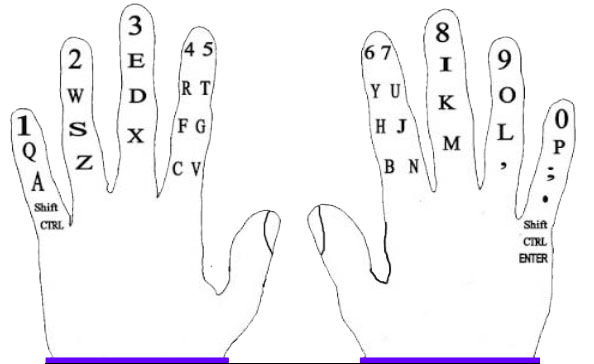
Touch typing is a method of typing without looking at the keyboard. It uses all ten fingers and builds muscle memory by keeping fingers on the home row. This technique improves speed, accuracy, and comfort while typing.
Why Is Typing Necessary?
Typing is a core digital skill in today’s world. Whether you're writing assignments, coding, or communicating online, fast and accurate typing helps you:
- Complete tasks efficiently
- Communicate clearly
- Perform better in school and work environments
Benefits of Computer Typing Skills
- Increased productivity: Type faster and get more done
- Improved accuracy: Fewer mistakes and better focus
- Career readiness: Essential for office, tech, and creative jobs
- Better ergonomics: Reduces strain and fatigue
- Enhanced learning: Helps with note-taking and research
How to Type
- Place your fingers on the home row: A-S-D-F for the left hand, J-K-L-; for the right
- Use the correct finger for each key
- Keep your thumbs on the spacebar
- Return fingers to the home row after each keystroke
How to Type Faster
- Practice touch typing daily
- Focus on accuracy before speed
- Use typing games and drills
- Avoid looking at the keyboard
- Keep your hands relaxed
Rules for Typing
- Use all fingers, not just two or three
- Keep fingers on the home row
- Use Shift with the opposite hand for capital letters
- Avoid resting wrists while typing
- Look at the screen, not the keyboard
Basic Sitting Posture
- Sit upright with feet flat on the floor
- Keep elbows at a 90-degree angle
- Shoulders relaxed, back straight
- Avoid leaning forward or slouching
Keyboard Position
- Place keyboard just below elbow level
- Keep it flat or slightly tilted away from you
- Avoid wrist strain by not resting hands on the desk
Monitor Position
- Top of the screen should be at or slightly below eye level
- Keep monitor at arm’s length
- Avoid tilting your head up or down
Finger Positions on Keyboard
Left hand: A-S-D-F (pinky to index)
Right hand: J-K-L-; (index to pinky)
Thumbs: Spacebar
Each finger is responsible for specific keys to minimize movement.
Keyboard Layout Details
Most keyboards use the QWERTY layout, named after the first six letters on the top row. Keyboards include:
- Character keys: letters, numbers, symbols
- Modifier keys: Shift, Ctrl, Alt
- Function keys: F1–F12
- Navigation keys: arrows, Home, End, Page Up/Down